
How to ensure a great telehealth telepsychiatry virtual visit appointment
Prepare for your telepsychiatry virtual visit: setting, Zoom setup, internet speed, video and audio tips, My Medical Records login, and troubleshooting for a great appointment.

Your initial virtual visit may seem daunting, but thorough preparation ensures satisfaction. Real-time audio and visual connection characterizes telepsychiatric appointments. Most patients find virtual visits comparably effective to in-person sessions.
1. Choosing an Appropriate Setting & Technology

Required equipment:
- Laptop or smartphone with camera
- Headphones (reduces echo and mic cutout)
- Stable internet connection
- Private area for entire appointment duration
Schedule appointments during times ensuring privacy. Home or apartment settings are typical, though some patients use vehicles or nearby parks. Do not drive during appointments. Family members may join remotely with a shared Zoom Meeting ID. Work appointments fit well during lunch breaks.
2. Installing Zoom on your device
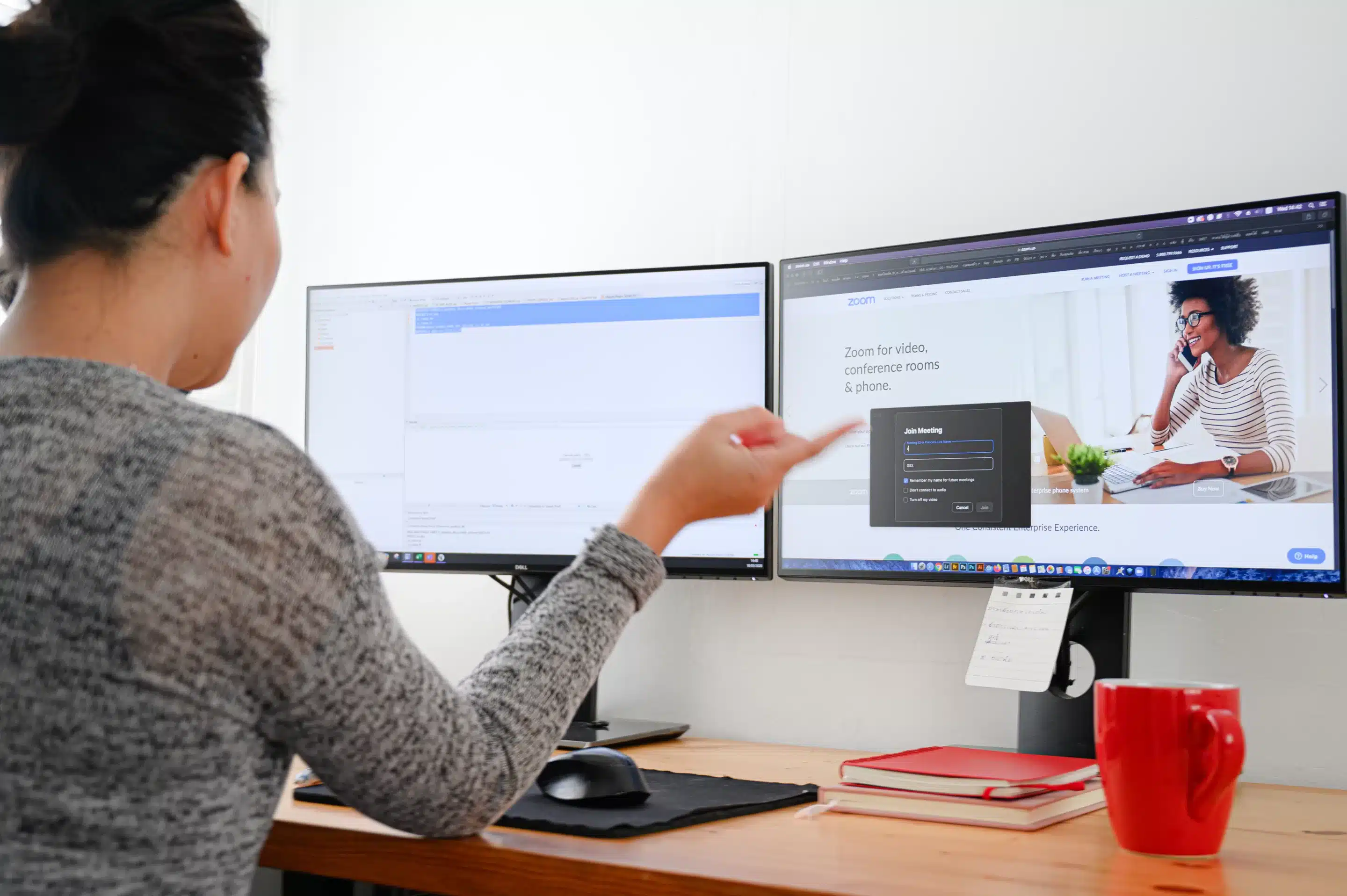
Download Zoom before your appointment at https://zoom.us/support/download. No Zoom account is required — the application automatically downloads when clicking your meeting link from My Medical Records or your appointment email.
Zoom runs on laptops, iPhones, and Android devices. Any device with a front-facing camera and microphone works, though newer/faster equipment provides better camera quality and efficiency.
Talk with a board-certified psychiatric provider — from home
TelepsychHealth offers online psychiatry for adults in Arizona, California, Connecticut, Florida, Georgia, Illinois, Michigan, Minnesota, New York, and Texas, and therapy in Illinois, Texas and Florida. We are in-network with major insurance plans, which vary by state.
3. Checking Your Internet Speed
Reliable internet prevents video lag and disconnections. Poor cellular coverage areas require WiFi networks; well-covered urban areas may use cellular service (though this consumes your monthly data allowance).
Test your speed with an online speed test.
Recommended: Greater than 10 mb/s for download and upload. Less than 1 mb/sec produces a poor experience — postpone until faster internet is available.
4. Testing Zoom
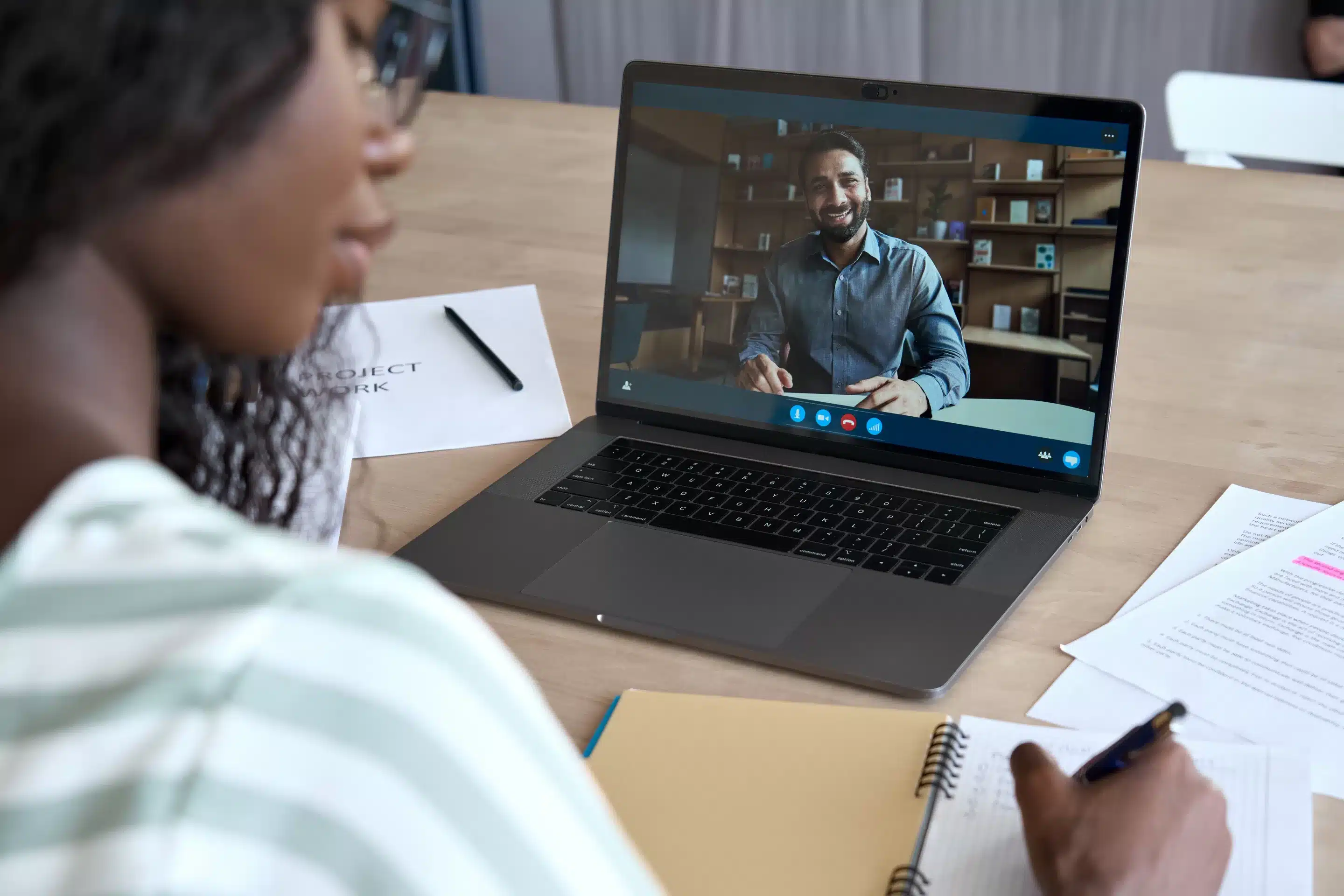
Join a test meeting at https://zoom.us/test to verify your settings:
- Grant camera and audio permissions
- Confirm you appear in the app (not just your name/icon)
- Remove external speakers or unexpected headphone connections
- Test audio using Zoom's audio testing feature
5. Video Tips

Clear visibility enables providers to observe non-verbal cues, improving understanding and communication. Insurance requires visible patients for telepsychiatric coverage.
- Maximize front-facing lighting; minimize background lighting
- Display your upper torso from the abdomen upward, including your arms
- Prop phones on stable surfaces (avoid holding)
6. Audio Tips

Microphones frequently join meetings muted (indicated by a microphone icon with a red line). Click to unmute.
- Use headphones to reduce echo and audio dropout
- Check audio settings after joining a test meeting: Changing Settings in the Desktop Client or Mobile App
- If audio fails on your device, call in: Settings → Switch to Phone Audio for the phone number and code (Joining a Meeting by Phone)
7. Logging into the Appointment

Create a My Medical Records account using your received email invitation (patient portal registration guide). A Zoom account is unnecessary.
Login steps:
- Access your My Medical Records account
- Navigate to 'Appointments'
- Click 'Check-in' next to your appointment (no earlier than 30 minutes before the scheduled start)
- Enter your details and join the video session
Troubleshooting

Zoom requests a meeting ID: Login through My Medical Records first to auto-load the ID, or click the email reminder link for direct access.
Privacy concerns: Virtual sessions maintain security standards.
Technical difficulties: Contact (888) 730-5220 for assistance with joining or technical questions.
Cancellations: Email or call directly. Messages sent to My Medical Records reminder emails, youcanbook.me, or text are not received.

Using telepsychiatry on an iPad
Talk with a board-certified psychiatric provider — from home
TelepsychHealth offers online psychiatry for adults in Arizona, California, Connecticut, Florida, Georgia, Illinois, Michigan, Minnesota, New York, and Texas, and therapy in Illinois, Texas and Florida. We are in-network with major insurance plans, which vary by state.

Published by the TelepsychHealth clinical team — evidence-based mental health guidance reviewed by licensed psychiatric providers.